How Telemetry in Chrome Android Improves Your Browsing
Published: 16 Jan 2026
Have you ever wondered how Chrome on your Android phone works so smoothly and quickly? Well, it’s all thanks to something called telemetry! Telemetry is like a helpful tool that collects data to make Chrome faster, safer, and better for everyone. It tracks things like how fast websites load, if there’s a crash, or if something is not working right. By sending this information back to Google, Chrome can fix problems and improve your experience. Want to know more about how telemetry helps Android and how it keeps you safe online? Let’s dive in and learn how it all works!
What is Telemetry in Chrome Android?
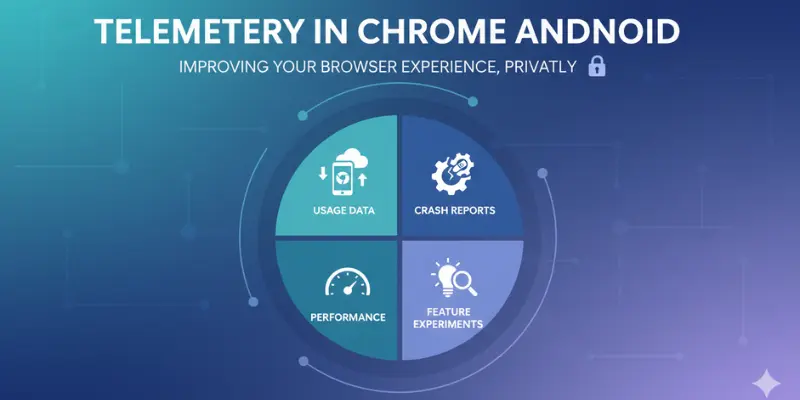
Telemetry in Chrome Android is a system that helps improve how Chrome works on your Android phone. It collects certain data from your device to see how the browser is performing. This data can include things like how fast websites load, if there are any crashes, or if something isn’t working properly.
The information gathered is sent to Google (but usually in an anonymous way, so it’s not tied to you personally), allowing them to fix problems, speed things up, and make Chrome safer. Think of it like a helpful assistant that lets Google know if something goes wrong, so they can make Chrome even better for everyone who uses it.
How Does Telemetry Work in Chrome on Android?
Telemetry in Chrome on Android works by collecting certain types of data about how the browser is performing on your device. Here’s a simple way to understand it:
- Data Collection: When you use Chrome on your Android phone, telemetry collects information about your activity, like how fast pages load, how often Chrome crashes, or if a feature doesn’t work correctly. This can include things like memory usage, page load times, and errors that happen.
- Sending Data to Google: The collected data is sent to Google’s servers. The data is generally anonymous, meaning it doesn’t link directly to you, but it helps Google understand how Chrome is working for users all around the world.
- Improvement and Fixes: Once Google receives this data, they use it to improve Chrome. For example, if a lot of people are having trouble with a specific feature, Google can look into it and fix it. It also helps them make Chrome faster and more stable.
In short, telemetry in Chrome on Android works like a helper that reports back to Google, so they can make the browser better, faster, and safer for everyone.
Types of Telemetry Data Collected in Chrome Android
Telemetry data collected in Chrome on Android helps improve the browser’s performance and user experience. Here are the main types of data that are collected:
- Usage Data
- This includes information about which features you use in Chrome, like how often you open new tabs, use bookmarks, or visit certain websites. It helps Google understand which features are popular and how users interact with the browser.
- This includes information about which features you use in Chrome, like how often you open new tabs, use bookmarks, or visit certain websites. It helps Google understand which features are popular and how users interact with the browser.
- Performance Data
- This tracks how well Chrome is running on your phone, including page load times, how much memory Chrome uses, and how fast the browser responds. If Chrome is slow or lagging, this data helps Google pinpoint where the problem is.
- This tracks how well Chrome is running on your phone, including page load times, how much memory Chrome uses, and how fast the browser responds. If Chrome is slow or lagging, this data helps Google pinpoint where the problem is.
- Crash Reports
- When Chrome crashes, telemetry sends information about what caused it to stop working. This helps Google fix bugs and make Chrome more stable, so it doesn’t crash as often.
- When Chrome crashes, telemetry sends information about what caused it to stop working. This helps Google fix bugs and make Chrome more stable, so it doesn’t crash as often.
- Error Logs
- If a feature doesn’t work right or there’s an issue with the website, error logs are collected to help identify and fix the problem.
- If a feature doesn’t work right or there’s an issue with the website, error logs are collected to help identify and fix the problem.
- Device and System Information
- Telemetry also collects information about the device you’re using, like the type of Android phone and version of the operating system. This helps Google ensure Chrome works well across all devices.
- Telemetry also collects information about the device you’re using, like the type of Android phone and version of the operating system. This helps Google ensure Chrome works well across all devices.
These types of telemetry data help Google improve Chrome’s performance, fix bugs faster, and make the browser better for all users.
Why Does Chrome Collect Telemetry Data?
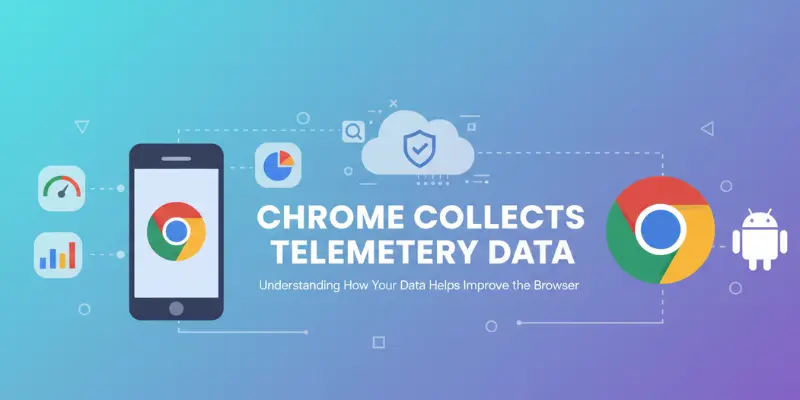
Chrome collects telemetry data for several important reasons, all aimed at making your browsing experience better, faster, and safer. Here’s why it’s done:
- Improve Browser Performance
- Telemetry helps Google see how well Chrome is working on your device. By tracking things like page load times and how fast Chrome reacts, they can identify areas where Chrome can be made faster and smoother. For example, if many users are experiencing slow loading on certain sites, Google can work to fix that issue.
- Telemetry helps Google see how well Chrome is working on your device. By tracking things like page load times and how fast Chrome reacts, they can identify areas where Chrome can be made faster and smoother. For example, if many users are experiencing slow loading on certain sites, Google can work to fix that issue.
- Fix Bugs and Crashes Quickly
- If Chrome crashes or stops working correctly, telemetry sends details about what caused the issue. This allows Google’s team to quickly find the problem and release fixes, so you won’t experience the same issue again.
- If Chrome crashes or stops working correctly, telemetry sends details about what caused the issue. This allows Google’s team to quickly find the problem and release fixes, so you won’t experience the same issue again.
- Enhance Features and Usability
- By understanding how users interact with Chrome, Google can improve existing features or add new ones that better serve your needs. For instance, if a certain feature is hardly ever used, it might be tweaked or removed to streamline the browser.
- By understanding how users interact with Chrome, Google can improve existing features or add new ones that better serve your needs. For instance, if a certain feature is hardly ever used, it might be tweaked or removed to streamline the browser.
- Boost Security and Safety
- Telemetry also helps Google keep Chrome secure by detecting security threats or unsafe websites. If Chrome identifies a dangerous site, this data helps Google update Chrome’s security features to protect users from online threats like phishing or malware.
- Telemetry also helps Google keep Chrome secure by detecting security threats or unsafe websites. If Chrome identifies a dangerous site, this data helps Google update Chrome’s security features to protect users from online threats like phishing or malware.
- Personalize User Experience
- The data helps Chrome adapt to your browsing habits, making features like suggestions, autofill, and recommendations more useful and tailored to you.
- The data helps Chrome adapt to your browsing habits, making features like suggestions, autofill, and recommendations more useful and tailored to you.
In short, telemetry data helps Google fix problems, improve performance, add useful features, and keep your browsing safe. It’s all about making Chrome the best browser it can be!
Privacy Concerns Around Telemetry
Privacy concerns around telemetry in Chrome are common, and it’s important to understand how your data is handled. Here are some key points about privacy and what you should know:
- What Data is Collected?
- Telemetry data includes things like how fast websites load, crash reports, and which features you use. It helps improve Chrome’s performance but does not typically include personal information like your name or specific browsing history.
- Telemetry data includes things like how fast websites load, crash reports, and which features you use. It helps improve Chrome’s performance but does not typically include personal information like your name or specific browsing history.
- Anonymity of Data
- The data collected by telemetry is usually anonymous, meaning it’s not linked directly to you as a person. For example, it may track which websites are slow to load, but it doesn’t track which specific person is visiting those websites.
- The data collected by telemetry is usually anonymous, meaning it’s not linked directly to you as a person. For example, it may track which websites are slow to load, but it doesn’t track which specific person is visiting those websites.
- Google’s Privacy Policies
- Google has strong privacy policies that explain how your data is handled. Telemetry data is used only for improving Chrome and providing better services. However, Google does collect data to provide personalized features like search suggestions, which can sometimes raise concerns.
- You can learn more about Google’s privacy policies on their official pages, which are designed to make sure your data stays secure.
- Google has strong privacy policies that explain how your data is handled. Telemetry data is used only for improving Chrome and providing better services. However, Google does collect data to provide personalized features like search suggestions, which can sometimes raise concerns.
- Turning Off Telemetry
- You can control telemetry by adjusting settings in Chrome. If you’re concerned about your privacy, you can choose to opt out of sending usage data. Although this may limit some Chrome features, your browsing will still work normally.
- In Chrome settings, you can disable certain data collection by turning off features like “Send Usage Data” or “Crash Reports.”
- You can control telemetry by adjusting settings in Chrome. If you’re concerned about your privacy, you can choose to opt out of sending usage data. Although this may limit some Chrome features, your browsing will still work normally.
- Data Encryption and Security
- The telemetry data sent to Google is encrypted, which means it’s kept safe from being accessed by unauthorized parties. Google uses these measures to protect your information during transmission.
- The telemetry data sent to Google is encrypted, which means it’s kept safe from being accessed by unauthorized parties. Google uses these measures to protect your information during transmission.
- Misunderstandings about Telemetry
- Some people worry that telemetry means Chrome is tracking their every move. However, telemetry is focused on improving the browser’s performance, not on spying on users. It’s designed to make browsing safer and faster, not to invade your privacy.
How to Control Telemetry Settings in Chrome on Android
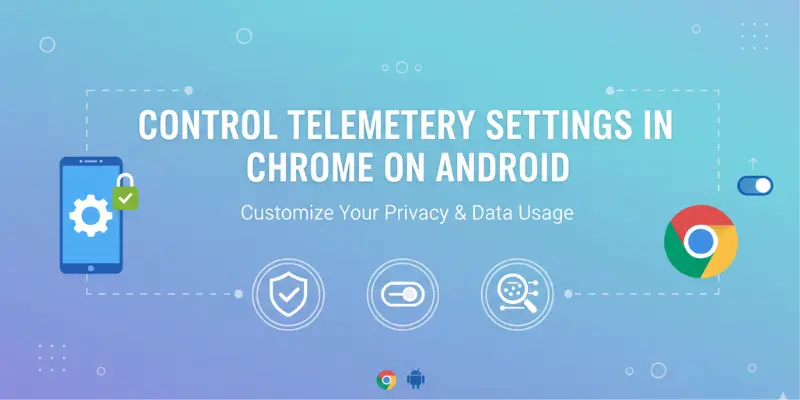
If you’re concerned about privacy and want to control telemetry settings in Chrome on Android, it’s simple to adjust how much data you share. Here’s how you can do it:
1. Open Chrome Settings
- Launch the Chrome app on your Android device.
- Tap the three vertical dots (menu) in the top-right corner of the screen to open the menu.
- Select Settings from the dropdown.
2. Navigate to Privacy Settings
- Scroll down and tap on Privacy under the “Advanced” section.
3. Disable Usage and Crash Data
- In the Privacy menu, find and tap on Usage and Crash Reports.
- You’ll see an option called “Send usage data to Google”. If you want to limit data sharing, turn this option off.
- This stops Chrome from sending your browsing data and crash reports to Google, though some basic features may still be used for performance improvement.
4. Turn Off Syncing (Optional)
- If you prefer even more control over your data, you can disable syncing. This will stop Chrome from syncing your browsing data (like bookmarks, history, etc.) with your Google account.
- To turn it off, go to Settings, tap Sync and Google Services, and toggle Sync off.
5. Clear Browsing Data (Optional)
- If you’re worried about past telemetry data, you can clear your browsing data. This can include history, cache, and cookies.
- Go to Settings, tap on Privacy, then select Clear browsing data.
- Choose the data types you want to delete and tap Clear Data.
6. Use “Do Not Track” Option (Optional)
- Although Chrome doesn’t fully respect “Do Not Track,” you can enable it in the settings to signal to websites not to track you.
- In Settings, go to Privacy, then toggle Send “Do Not Track” requests to websites.
By adjusting these privacy settings, you can control how much data Chrome collects and shares. While turning off telemetry may reduce some features, your browsing experience will remain functional and private.
Real-World Example of Telemetry in Action
A real-world example of telemetry in action can help us understand how it improves Chrome on Android. Here’s a simple scenario:
Example: Improving Page Load Speed
Imagine you’re using Chrome on your Android phone, and you notice that a website takes a long time to load. Chrome’s telemetry system collects information about this issue—like how long it took to load the page and whether there were any errors or slowdowns during the process.
This data is sent to Google (in an anonymous way), where engineers can see that many users are experiencing slow load times for the same website. Google then uses this information to investigate the cause, whether it’s a problem with the website, a bug in Chrome, or a network issue.
Once the problem is identified, Chrome updates may be released to fix the issue. This means the next time you visit that site, the page will load faster, and Chrome will work better for everyone. Without telemetry, these types of performance problems could go unnoticed for longer, and users wouldn’t have a chance to get faster browsing speeds.
This shows how telemetry helps make Chrome not only faster but also smarter, by collecting data that leads to fixes and improvements based on real user experiences.

Common Myths About Telemetry in Chrome Android
There are several common myths about telemetry in Chrome on Android that can confuse. Let’s clear them up:
1. Myth: Telemetry Collects Personal Information
- Reality: Telemetry does not collect personal data like your name, address, or personal browsing history. It focuses on performance data, such as how fast a page loads or if Chrome crashes. This data is anonymized to ensure your privacy.
2. Myth: Telemetry Is Used to Track Everything You Do
- Reality: Telemetry does not track every website you visit or every action you take. It only collects performance-related information (like loading times or crashes) and non-personally identifiable data to help improve Chrome’s performance. Your personal activities are not being tracked.
3. Myth: Turning Off Telemetry Will Make Chrome Worse
- Reality: While disabling telemetry will stop Chrome from sending usage and crash reports, it won’t drastically affect your browser’s functionality. Chrome will still work, but without telemetry, certain improvements might take longer to implement, like fixing bugs or optimizing performance.
4. Myth: Telemetry Can Access Your Private Data
- Reality: Telemetry cannot access your private data, such as passwords, saved autofill information, or sensitive browsing history. It only collects technical data that helps improve browser performance, like speed and stability. Google has strict policies to ensure that your privacy is respected.
5. Myth: Telemetry is Only for Collecting Data on Google
- Reality: While Google does use telemetry data to enhance Chrome, it’s primarily used for improving performance, identifying bugs, and creating new features. The collected data helps make sure that Chrome works well for all users, not just for Google’s benefit.
Clearing up these myths helps users understand that telemetry is a tool designed to improve their experience with Chrome while keeping their privacy and security in mind.

The Future of Telemetry in Chrome Android
The way Chrome collects and uses telemetry will keep getting better and smarter. In the future, Google will work to make telemetry more useful but also more respectful of user privacy. This means:
🔹 Better Performance Insights
Chrome will use telemetry to understand how Android phones run the browser even more deeply. This will help speed up websites, reduce crashes, and make the browser smoother for everyone.
🔹 Stronger Privacy Controls
Users will likely get more options to choose what data they want to share. Chrome may offer clearer settings to help people feel safe and in control of their data.
🔹 Smarter Error Detection
Telemetry tools could become smarter at finding problems before users even notice them. For example, Chrome might automatically spot a feature slowing down and fix it faster.
🔹 More Transparent Communication
Google may show users more information about telemetr,y like what is being collected and w,hy to build trust and comfort.
🔹 Integration With New Android Features
As Android updates, telemetry might work hand‑in‑hand with new system tools to improve efficiency and performance.
Example:
Imagine a future Chrome update that automatically notices when your phone battery drains quickly because of a website. Telemetry could help Chrome learn from this and suggest ways to save battery while you browse.
In short, Telemetry will keep helping Chrome become faster, safer, and more respectful of your privacy as Android technology grows.
Frequently Asked Questions About Telemetry in Chrome Android
Here are some frequently asked questions that help you understand telemetry in Chrome Android, its purpose, and how it affects your browsing experience.
Telemetry in Chrome Android refers to data that Chrome collects about how the browser is performing on your device. This includes things like page load times, crash reports, and memory usage. The data helps Google improve Chrome’s speed, stability, and features.
Chrome collects telemetry data to improve browser performance, fix bugs faster, enhance security, and personalize user experience. The data helps Google understand how the browser is working on different devices and what needs to be improved.
No, telemetry data is generally anonymous and does not collect personal information like your name, address, or browsing history. It mainly tracks performance-related data to help improve the browser.
You can control telemetry settings by going to Chrome Settings > Privacy > Usage and Crash Reports. Here, you can toggle options to stop sending data to Google. You can also disable syncing if you want more privacy control.
Telemetry collects performance data like page load times, crash reports, memory usage, and error logs. It also collects usage data on how you interact with Chrome, like which features you use and how often.
Yes, you can turn off telemetry in Chrome’s settings by disabling the “Send usage data” option in the Privacy settings. However, some features may not work as efficiently if telemetry is turned off.
Telemetry helps Google identify potential security threats, such as unsafe websites or phishing attempts. Sending error reports and data on security vulnerabilities, it allows Chrome to quickly respond to threats and protect users.
Conclusion
In conclusion, telemetry in Chrome Android plays a crucial role in enhancing the browser’s performance, security, and user experience. Collecting data on things like page load speeds and crash reports, it helps Google fix issues quickly and make Chrome better for everyone. While privacy concerns are important, Google ensures that telemetry data is anonymized and secure. You have control over what data is shared, and you can adjust your settings to suit your comfort level. Overall, telemetry is a valuable tool that helps keep Chrome running smoothly, and it’s up to you to decide how much data you want to share.






- Be Respectful
- Stay Relevant
- Stay Positive
- True Feedback
- Encourage Discussion
- Avoid Spamming
- No Fake News
- Don't Copy-Paste
- No Personal Attacks
- Be Respectful
- Stay Relevant
- Stay Positive
- True Feedback
- Encourage Discussion
- Avoid Spamming
- No Fake News
- Don't Copy-Paste
- No Personal Attacks
